The returns portal is a branded page where your buyer files their return without writing to you. You set it up under Portal in the left-hand menu, and it comes down to five blocks of decisions.
1. Turning it on (or off)
The toggle at the top rules over everything else. With the portal on, your customers can start returns and the “Something went wrong?” button appears in the delivered-order email. Turn it off and that button disappears; anyone reaching the portal sees it isn't available.
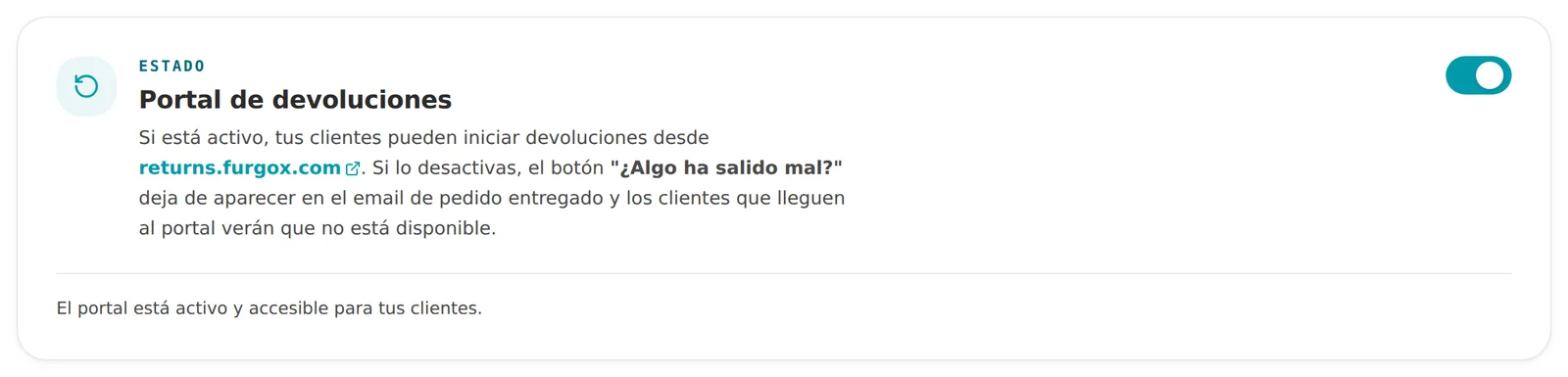
Turning it off isn't “closing” returns: it's dropping the self-service. You can still create returns from any order's page.
2. Your link
You can give the portal its own URL with your slug: returns.furgox.com/your-brand. That's the link to put on your site, in your post-purchase email or in your returns policy.
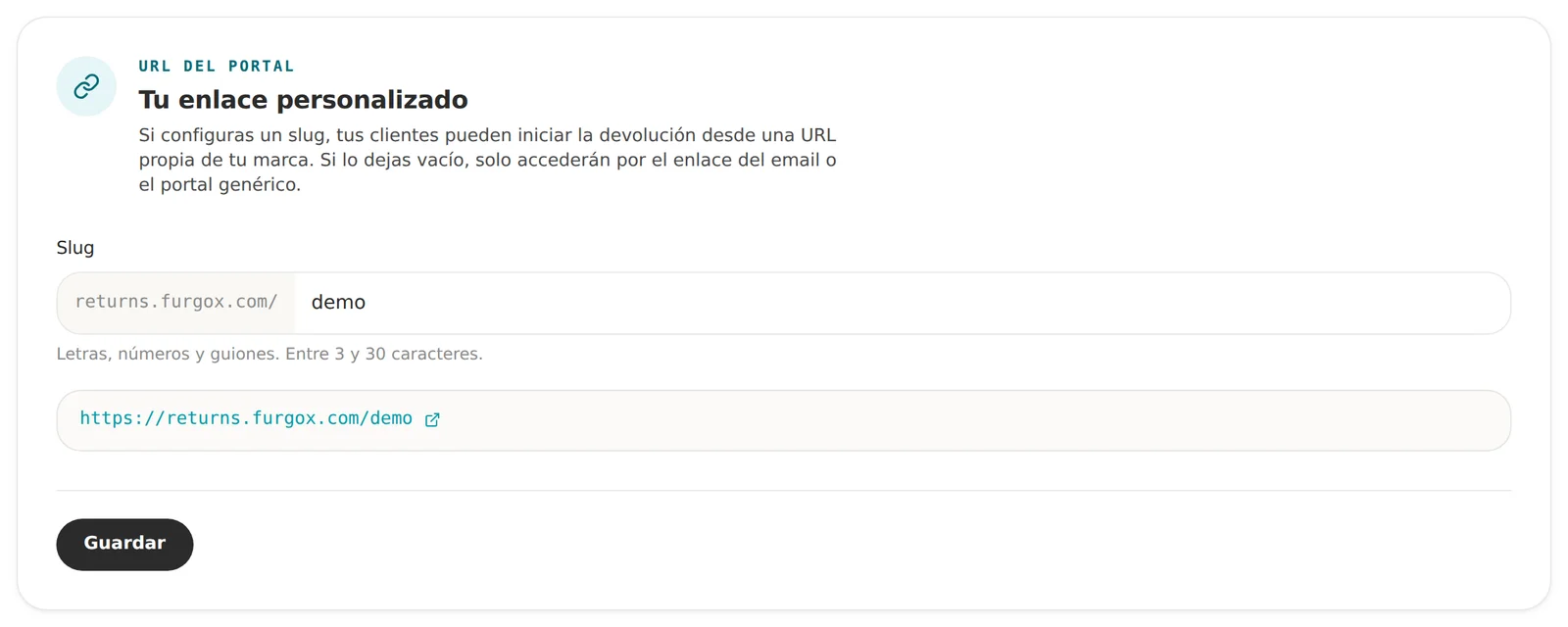
Leave it empty and the portal still works: customers arrive through the link in the delivered-order email.
3. Your branding
Upload your logo, choose its position and set your brand colour. That colour is used on the portal's buttons and accents, so match it to your store's for a seamless jump.
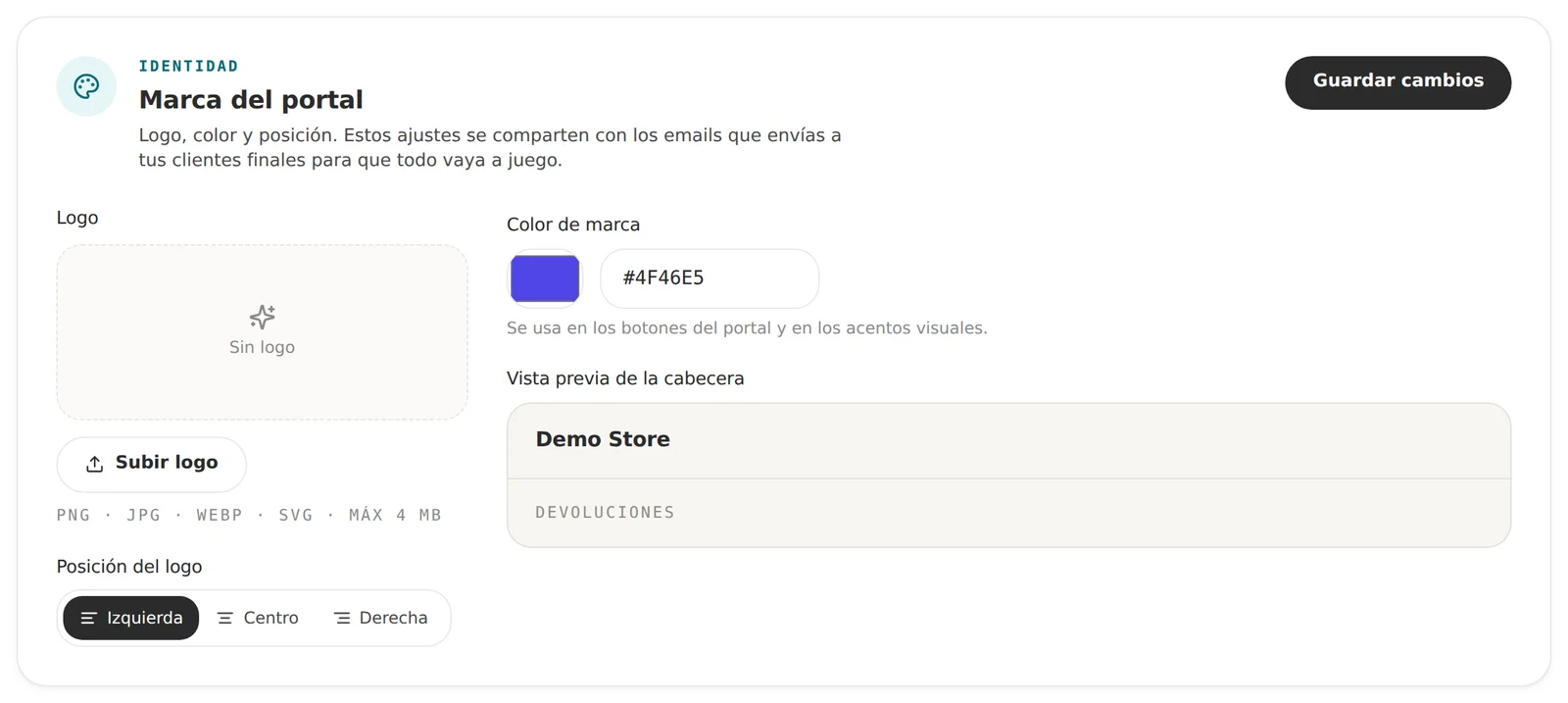
These settings are shared with the emails we send your end customer, so everything matches without doing it twice.
4. The welcome message
It's the first thing your customer sees. You can change the headline and the subtitle, and align them left, centre or right. There's a live preview beside it so you don't have to keep flipping back and forth.
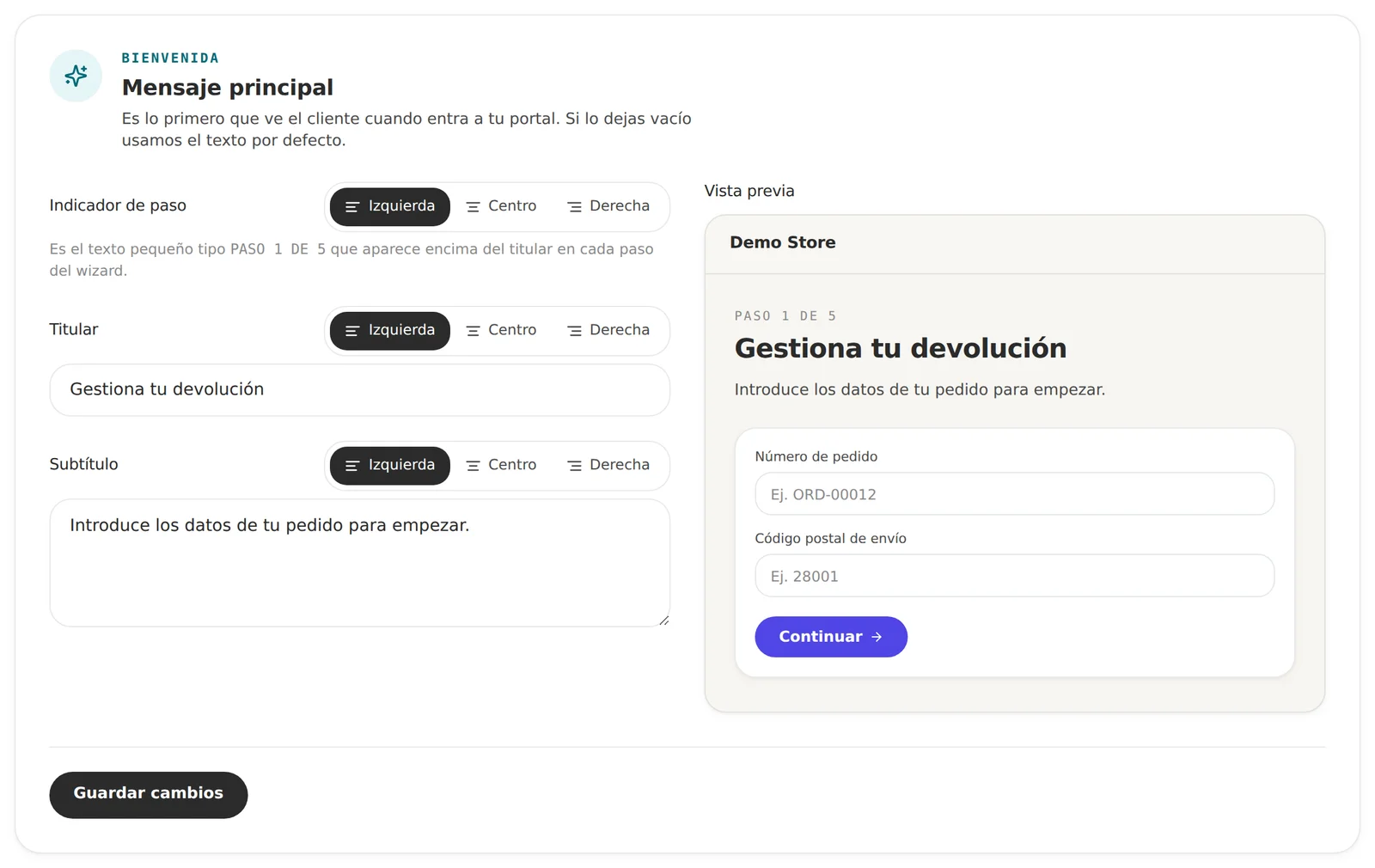
A headline like “Manage your return” works well because it's neutral and descriptive. If your brand has a voice of its own, this is a good place to use it.
5. The rules: what can be returned and how
This block is what really defines your returns policy.
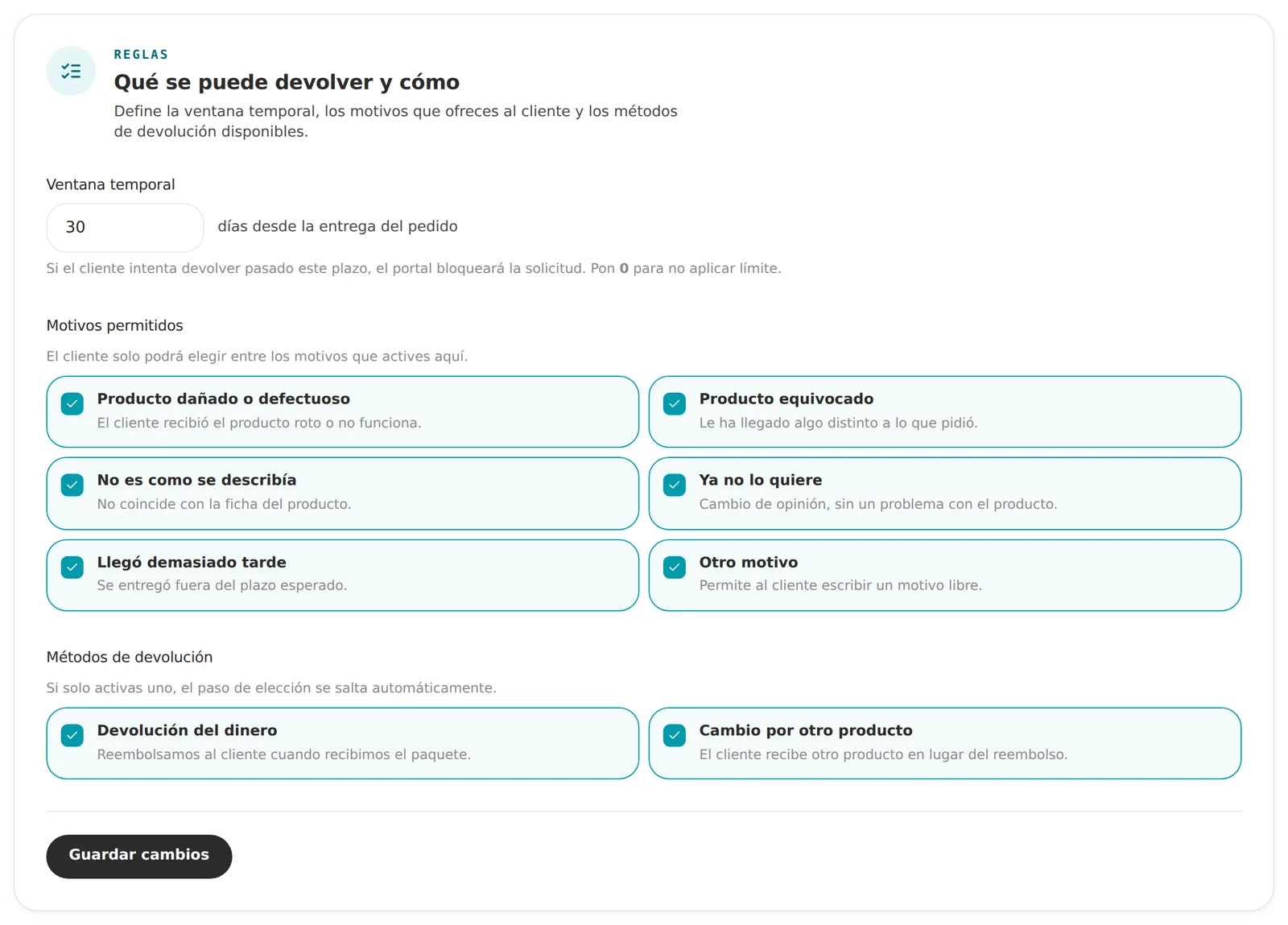
Time window
The days your customer has from delivery. Past that, the portal blocks the request. Set it to 0 for no limit.
Allowed reasons
Customers can only pick the ones you enable: damaged product, wrong product, not as described, changed their mind, arrived too late, and “other reason” (which lets them write freely).
It's worth leaving most of them on: the reasons tell you about your operation. If “damaged product” spikes, you have a packaging or carrier problem, not a returns problem.
Return methods
Refund, exchange for another product, or both. If you only enable one, we skip the choice step for the customer.
FAQ
Can I test the portal before giving it to customers?
Yes: open your own URL and walk through it with the number and postcode of a real delivered order. You'll see exactly what your customer sees.
What happens if I change the time window?
It applies to new requests. Returns already created carry on as they were.
Is the portal multilingual?
The portal uses the order's language when the store tells us; otherwise it's in Spanish.
Can I turn it off temporarily during campaigns?
You can, but think twice: peak season is exactly when you need self-service most. Tightening the window and reasons usually beats switching it off.
Want us to look over your setup before you publish it? Message us from the panel chat.