Sharing one password between three people is convenient right up until someone leaves or touches what they shouldn't. In Furgox each person gets their own user, and you decide how far they reach.
Adding someone to your account
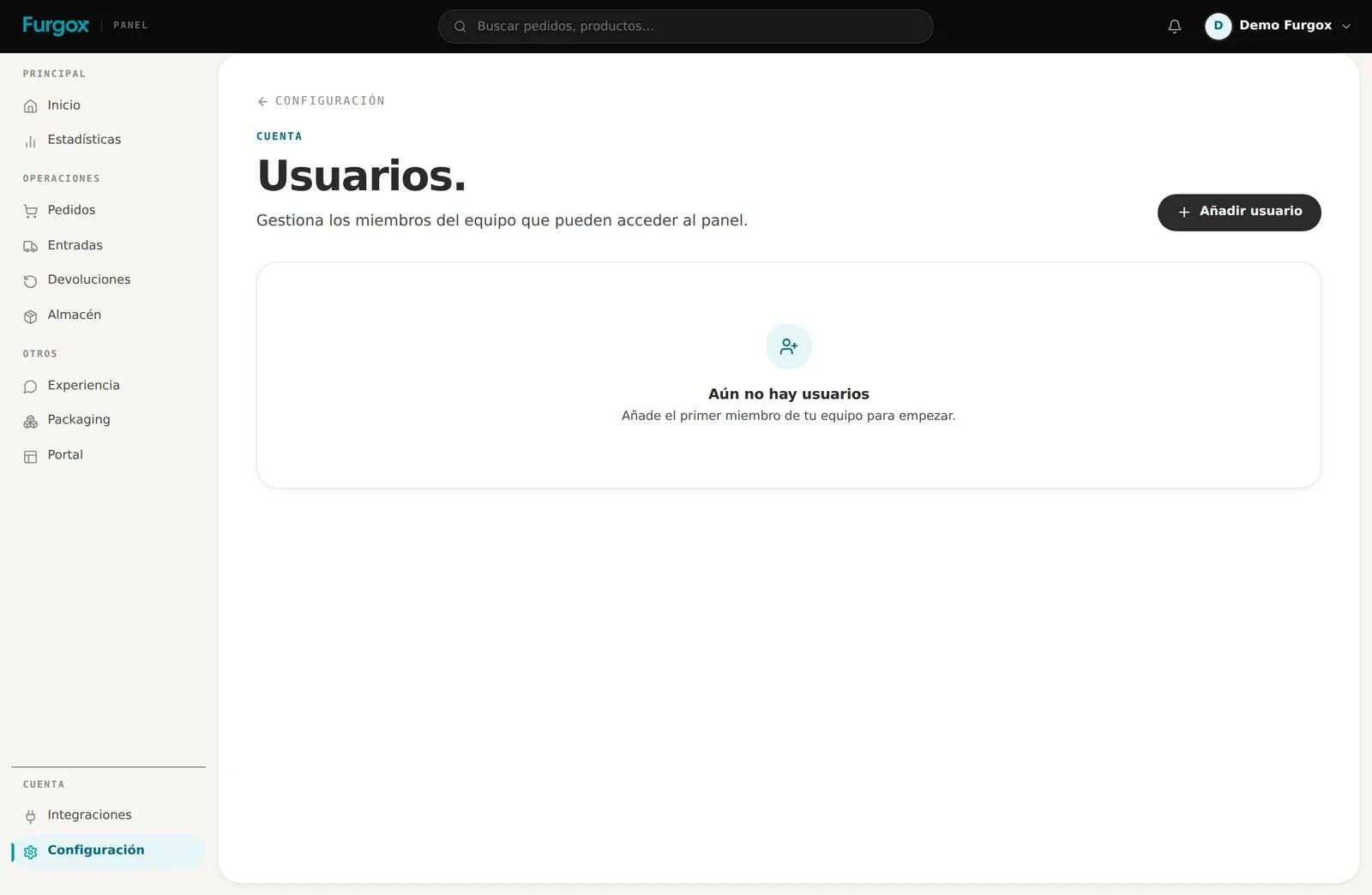
Go to Configuración → Usuarios (Settings → Users) and add the member with their name, email and role.
The two roles
Admin: full access. Sees and touches everything, including integrations, billing and users.
Member: orders, inbounds and returns only. The role for whoever works the day-to-day without needing to see your invoices or disconnect your stores.
Simple rule: Member by default, Admin only for whoever genuinely needs to touch billing or integrations. You can always promote someone; demoting later is more awkward.
Who should have which role
You and your partner or head of operations: Admin.
Customer support: Member. They need to see orders and create returns, not change your plan.
Your agency or developer, while the integration lasts: temporary Admin, then remove it.
Your accountant, if you give them access to invoices: Admin (that's where billing lives).
Turn on two-step verification
It's the yellow banner at the top of your panel until you enable it. With it on, signing in also asks for a code from your authenticator app, so a leaked password is no longer enough to get in.
It takes under a minute, from Configuración → Cuenta (Settings → Account). If you run your stock and billing from here, there's no reasonable excuse not to have it.
When someone leaves
Delete their user under Settings → Users. Their access is cut immediately.
If you shared any store or carrier password, change it anyway.
Review the integrations: if they connected stores with their personal platform account, reconnect with a company one.
FAQ
How many users can I have?
As many as you need to work. If your team grows a lot, tell us and we'll review it.
Do users get notified?
Yes. We send an email when someone is invited, when a user is deleted, when a password changes and when two-step verification is enabled or disabled. It's your safety net: if one arrives that you weren't expecting, something's up.
Can I see who did what?
The history of every order, inbound and return records the author of each action, telling apart what your team does from what we do.
Need a permission split we don't offer? Tell us from the panel chat.