Squarespace has no app install screen like Shopify's. The connection uses an API key you generate in your site settings and paste into Furgox. The only delicate part is the permissions, which Squarespace leaves as read-only by default.
Before you start
You need a commerce plan on Squarespace: without it, the developer API keys option doesn't appear.
You have to be signed in as the site owner or an administrator.
A store can only be connected to one Furgox account at a time.
1. Generate the key in Squarespace
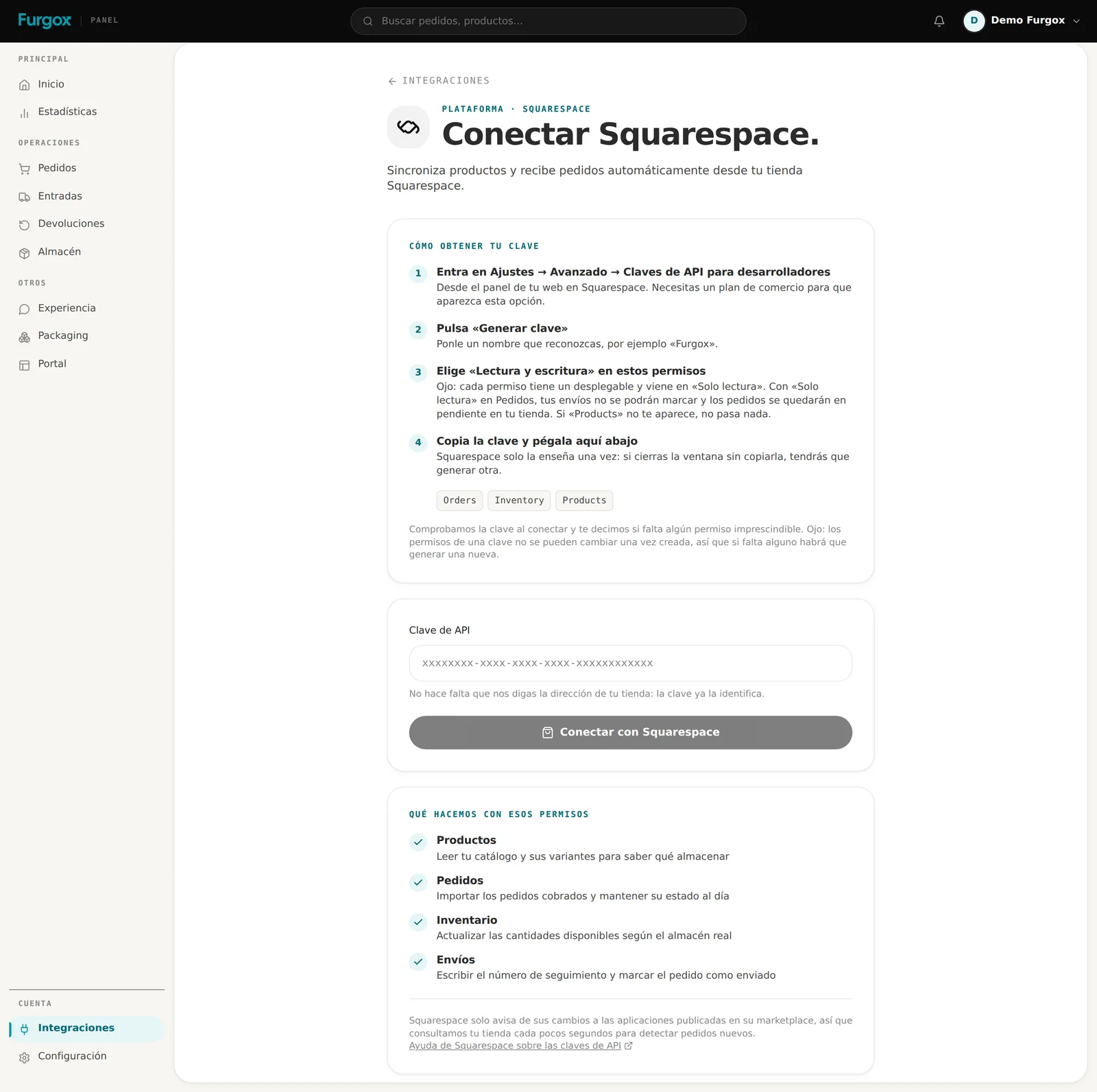
In your site's panel, go to Settings → Advanced → Developer API Keys.
Click Generate Key and give it a name you'll recognise, for example
Furgox.Set Orders, Inventory and Products (if it shows) to Read and Write.
Copy the key before closing the window.
The two classic mistakes: leaving permissions on “Read Only” — each one has its own dropdown — and closing the window without copying the key. Squarespace shows it once: lose it and you'll have to generate another.
If the Products permission doesn't appear in your list, don't worry: not every site offers it and we can still build your catalogue from inventory.
2. Paste the key into Furgox
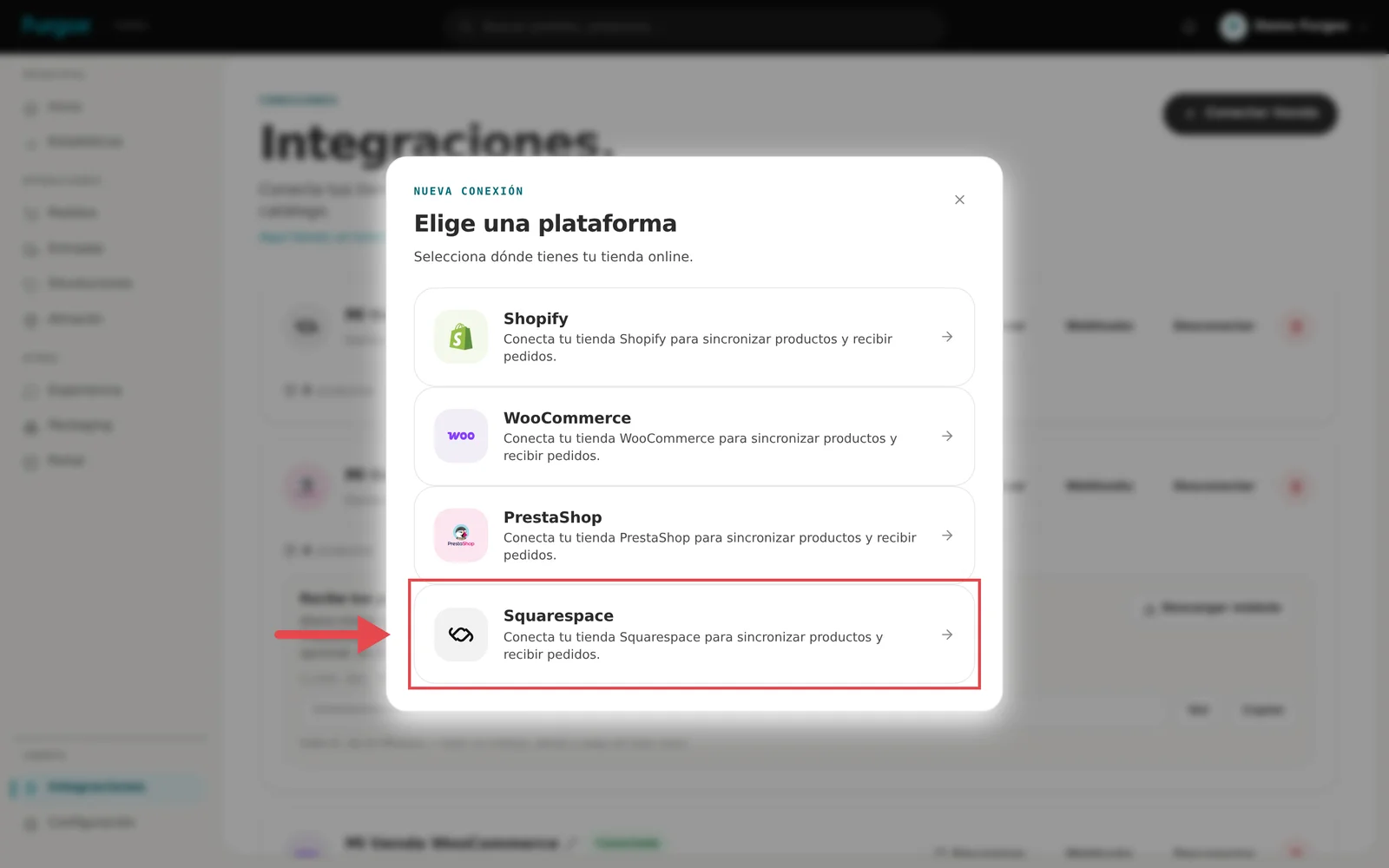
In your panel, open Integraciones (Integrations), click Conectar tienda and pick Squarespace.
Paste the key and connect. We check the permissions before saving anything: if the key is missing one, we tell you exactly which, so you don't have to guess.
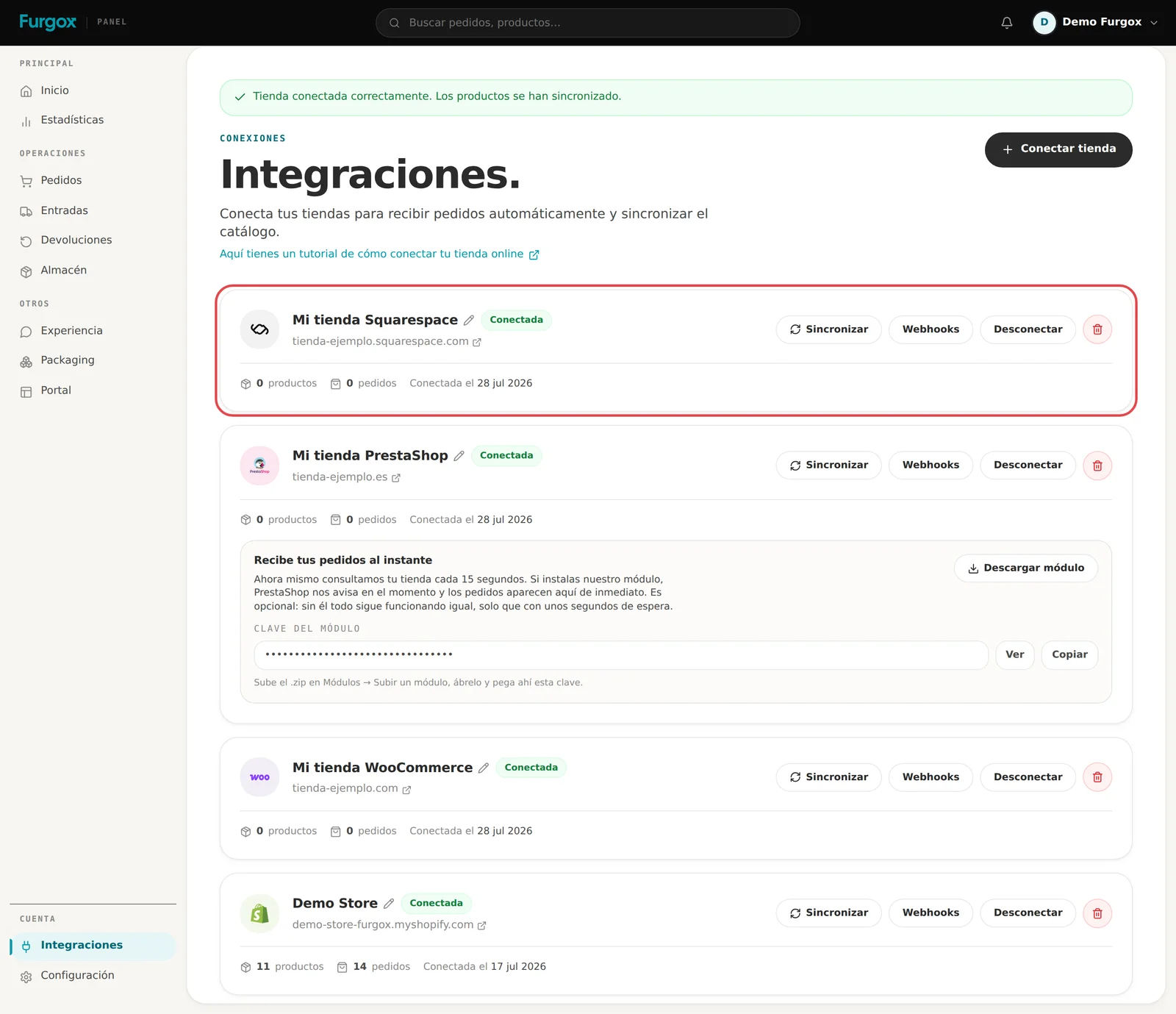
3. Done: your store is connected
What happens from now on
Orders
Squarespace can't notify us of its changes when the connection uses an API key: that's only possible with OAuth, reserved for extensions they've approved. So we poll your store every 15 seconds. In practice an order shows up in Furgox within seconds.
Products
We import your catalogue with variants, SKU and image. If your key lacks the products permission, we build it from inventory, which also carries each variant's SKU and name.
Stock
We publish the real warehouse units back to Squarespace as goods arrive and orders go out.
Shipping
When the order ships we write the tracking number into Squarespace and mark it as fulfilled, so your customer gets their usual notification.
What Squarespace won't let us do
Their API offers no refunds, cancellations or order editing. If you need to cancel or refund an order, do it from Squarespace: we handle the physical side of the shipment.
If something goes wrong
“The key is missing permissions”
Go back to Settings → Advanced → Developer API Keys and check that the permissions we listed are on “Read and Write”, not “Read Only”. Squarespace doesn't always let you edit an existing key: if you can't, generate a new one.
Orders stay pending in my Squarespace
That's the classic symptom of Orders being read-only: we can read them but not mark them fulfilled. Regenerate the key with the right permission and reconnect.
“This store is already connected to another account”
The same store can't live in two Furgox accounts. Disconnect it from the other one or write to us.
I regenerated the key in Squarespace
The old connection stops working. Go back to Integrations and connect the store again with the new key.
Stuck on the permissions? Message us from the panel chat and we'll look at it together.