Once Shopify is connected to Furgox, your store and your warehouse stop working apart: orders come in on their own, stock updates itself and tracking numbers go back to Shopify without you lifting a finger. You connect everything from your panel and it takes under two minutes.
Before you start
You need to be the store owner or a staff member allowed to install apps in Shopify.
Have your
.myshopify.comdomain handy (for examplemy-store.myshopify.com). It's the one in the address bar while you're inside the Shopify admin, even if customers see your own domain.A store can only be connected to one Furgox account at a time.
1. Open Integrations
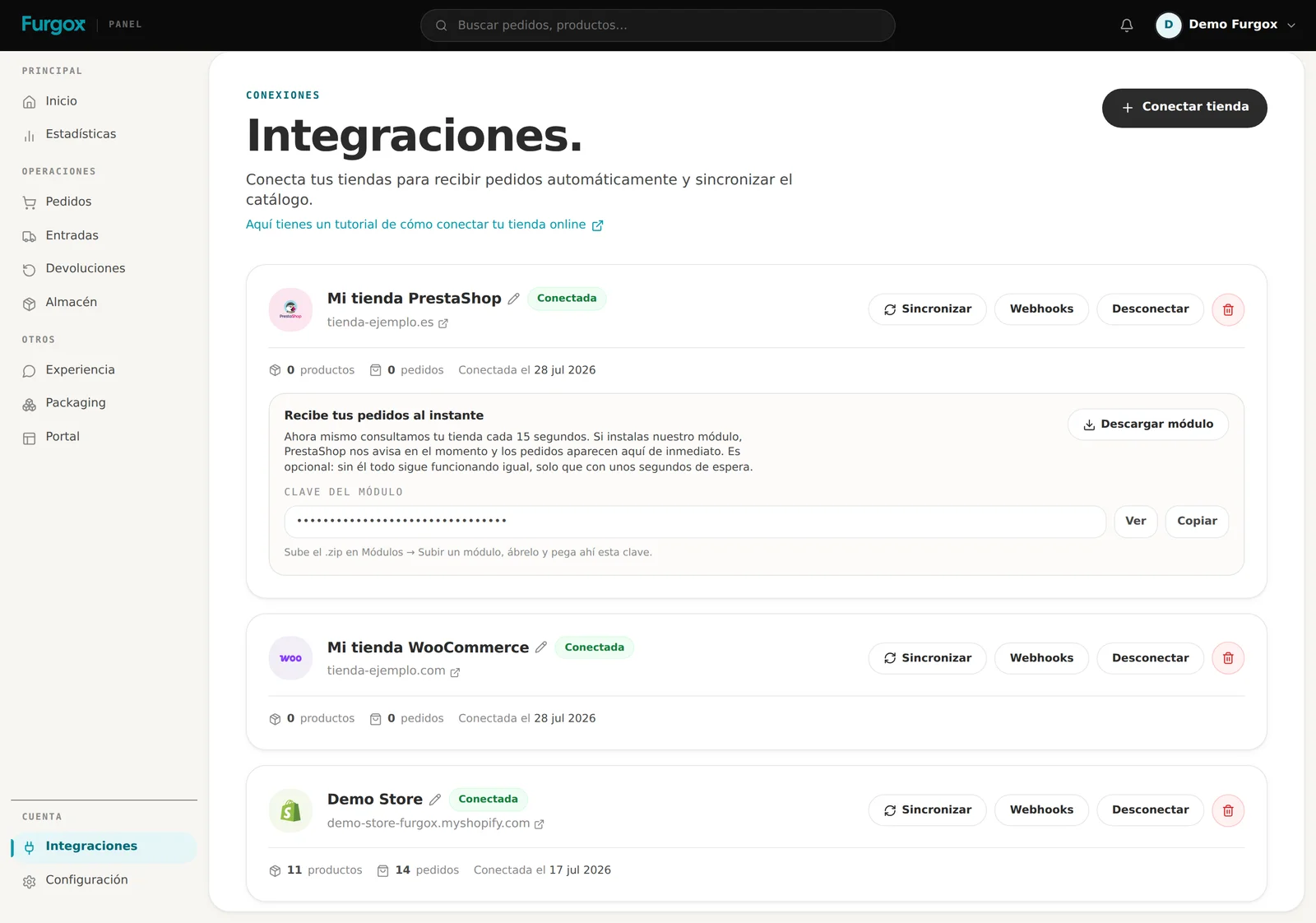
In your Furgox panel, open Integraciones (Integrations) in the left-hand menu, under Cuenta. That's where every store is connected and managed.
2. Choose Shopify
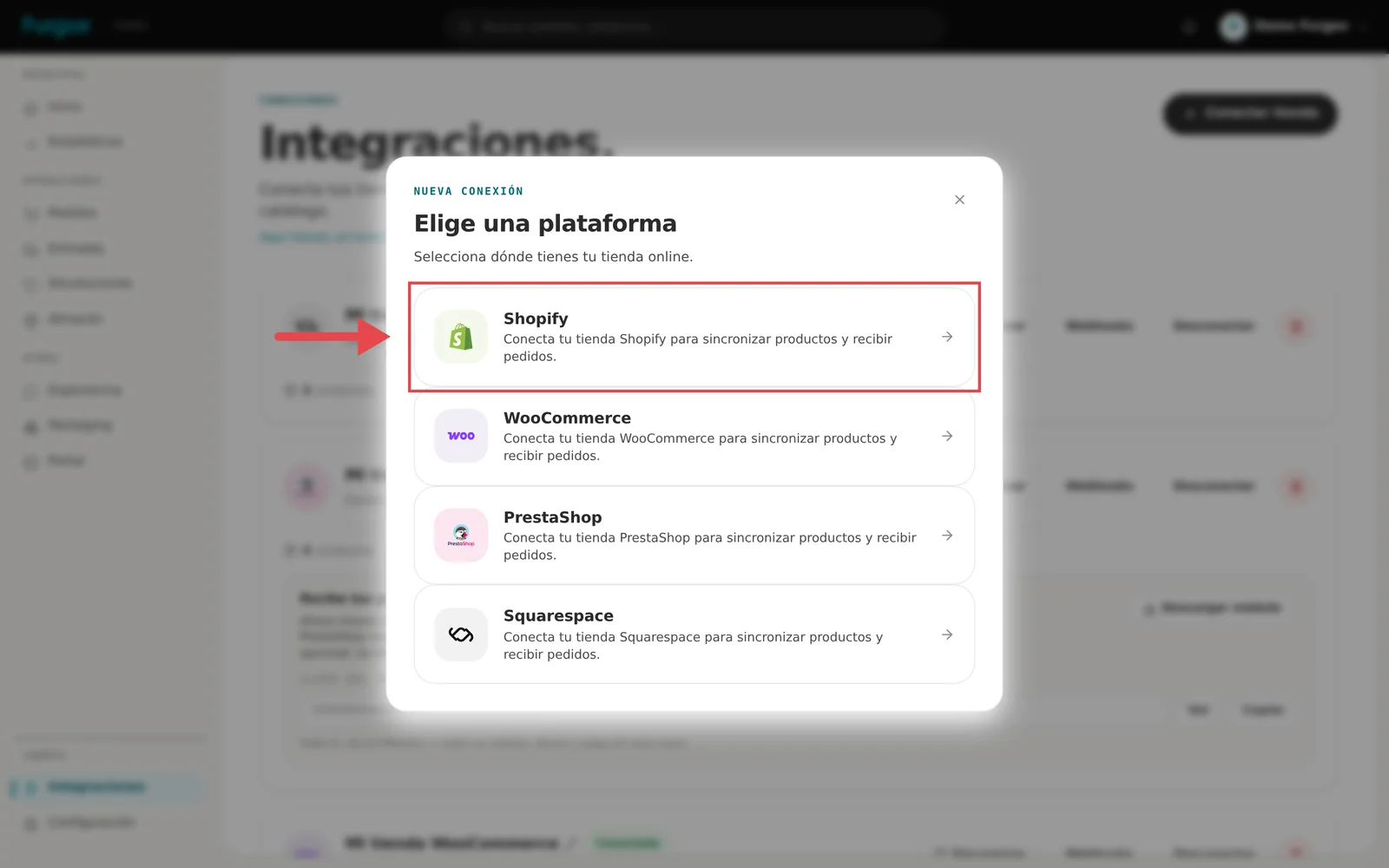
Click Conectar tienda (Connect store) at the top right and pick Shopify from the list of platforms.
3. Enter your store domain
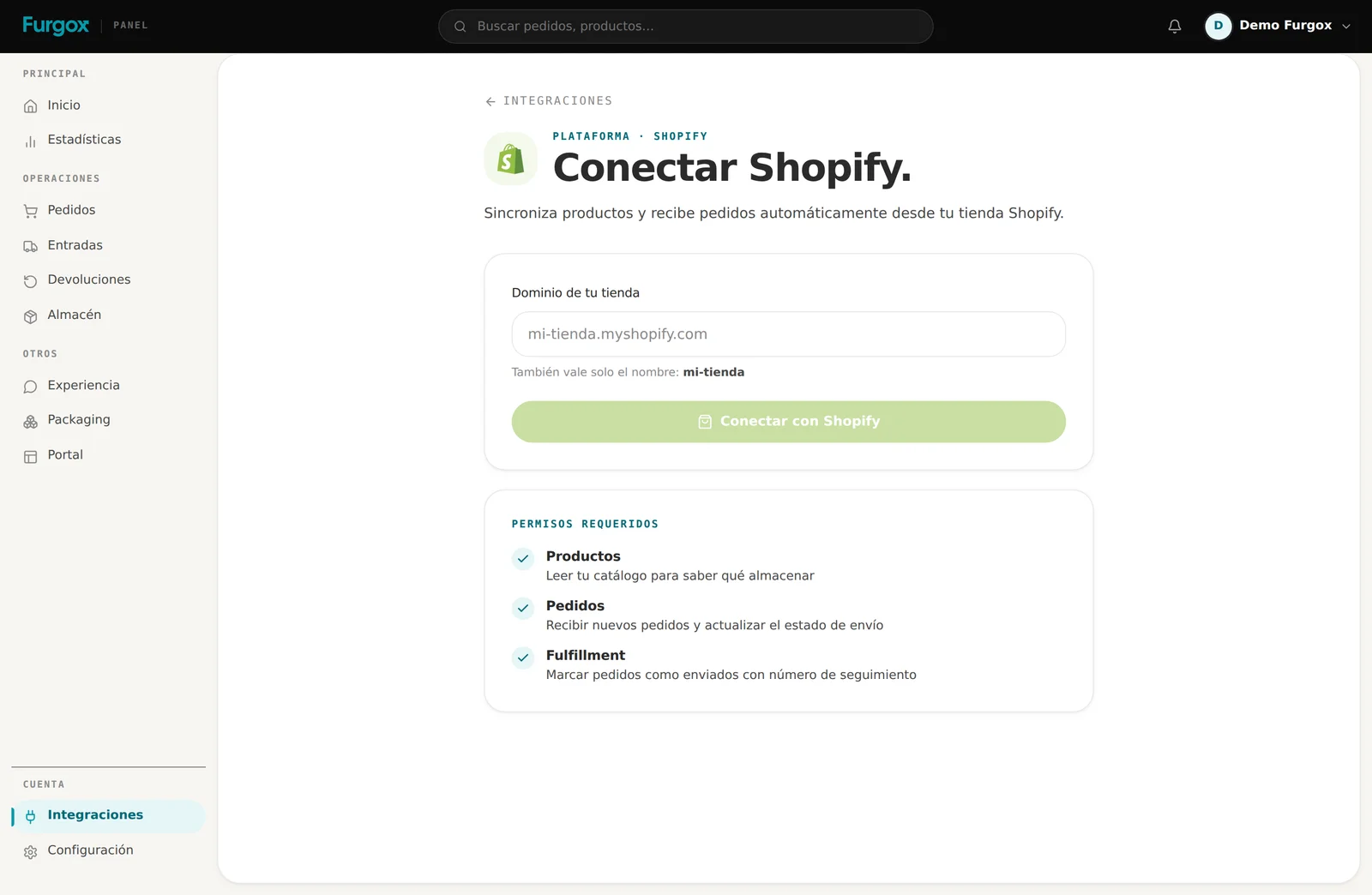
Type your .myshopify.com domain and click Conectar con Shopify. Just the name works too (my-store) — we fill in the rest.
Use the
.myshopify.comdomain rather than your own domain: that's the one that identifies your store inside Shopify.
4. Approve the installation in Shopify
We send you to your store to authorise the app. If you're not logged in, Shopify will ask you to. You'll then see the install screen with the permissions we need: review them and click Install app.
Here's what we ask for and why:
Products and inventory: read your catalogue so we know what to store, and write available units whenever they change.
Orders: receive every new order the moment it's paid.
Fulfillment: mark the order as shipped and write the carrier and tracking number.
We don't ask for access to your customers' payment details or your financial reports.
5. Done: your store is connected
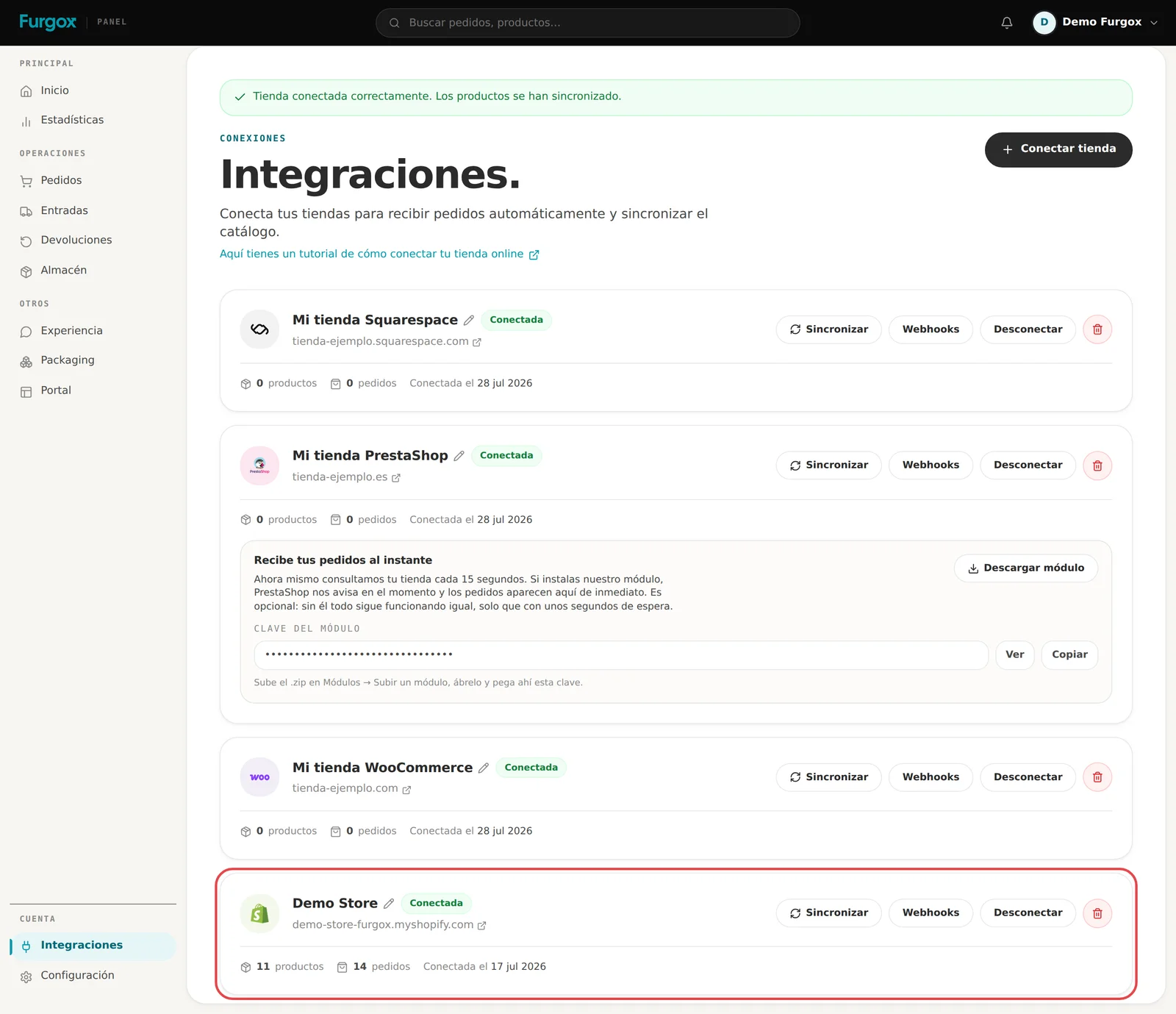
You come back to your panel and see the confirmation. At that point we import your catalogue and your recent orders, and register the automatic notifications (webhooks) so new orders arrive on their own.
What happens from now on
Products
Your catalogue shows up under Productos (Products) with SKU, barcode and image. That SKU is the starting point: as soon as you include the product in an inbound it gets its final Furgox SKU, which we also write back to your store.
Orders
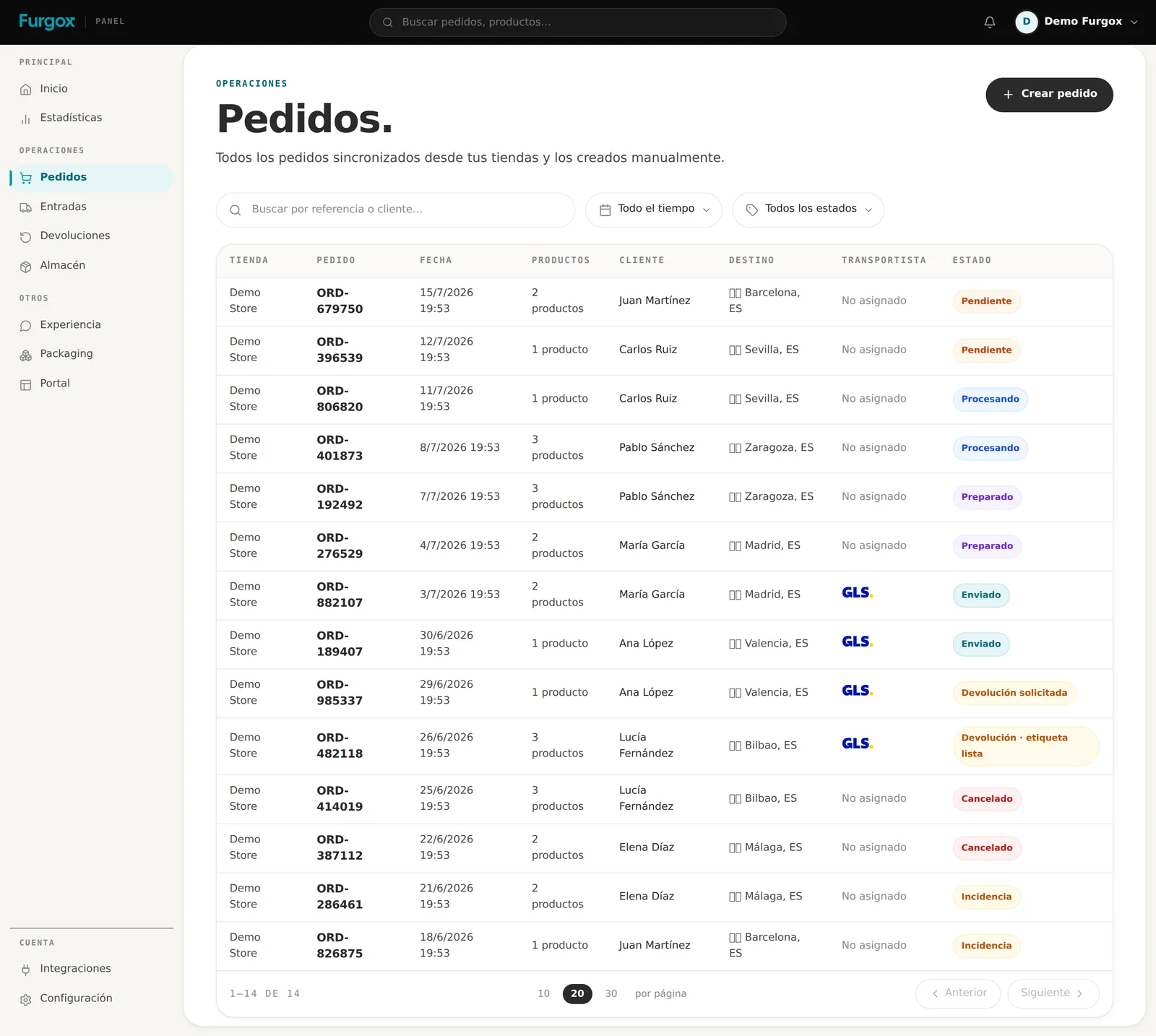
Every paid order reaches Furgox within seconds and appears under Pedidos (Orders) with its fulfilment status.
Stock
As we receive your goods and pick orders, we publish the real available units back to Shopify, so your store never sells what isn't there.
Shipping
When the parcel leaves the warehouse we write the tracking number into Shopify: your customer gets the usual shipping email and the order is marked as fulfilled.
If something goes wrong
“This store is already connected to another Furgox account”
A store can't live in two accounts at once. If it was connected under another account of yours, disconnect it there first. If you think it's a mistake, get in touch.
“The store could not be connected”
Usually the installation was cancelled, or the Shopify user you signed in with isn't allowed to install apps. Try again from Integraciones → Conectar tienda.
The store shows as “Desconectada” (disconnected)
Shopify expires access every so often for security. Click Reconectar on the store card and approve the installation again: no orders or history are lost.
Can I connect several stores?
Yes. You can have several stores, even on different platforms, in the same account — up to your plan's integration limit.
Stuck halfway? Message us from the chat in your panel and we'll finish the connection with you.